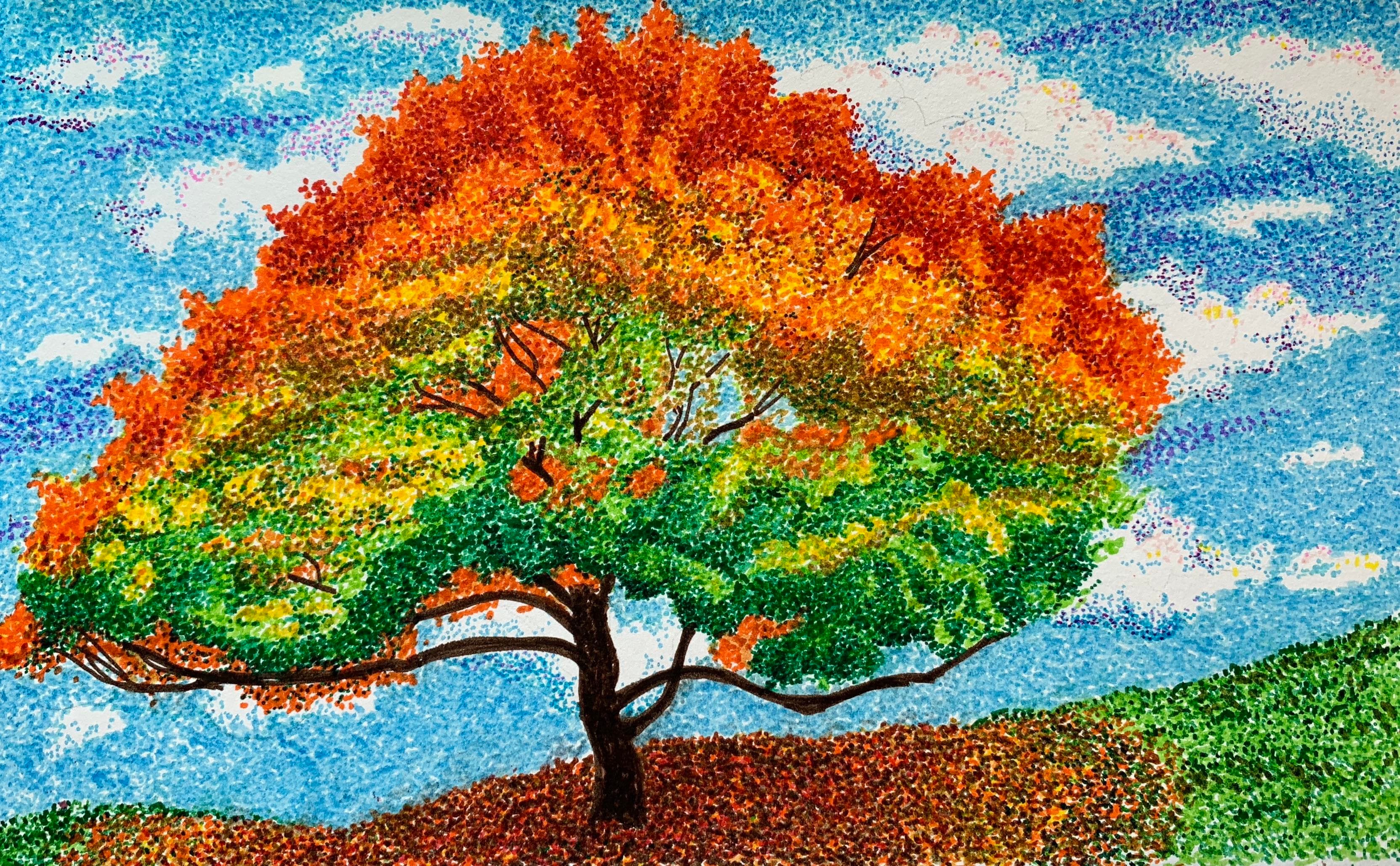
Today we draw a tree - One Component at a Time!
How a Tree Teaches Us Components, State, and Props
Search for a command to run...
How a Tree Teaches Us Components, State, and Props
No comments yet. Be the first to comment.
The Garden That Grew Too Wild Imagine you own a small garden.Every day you walk through it — watering, trimming, planting new seeds. At first, it’s peaceful.But as your garden grows, you start keeping lists — which plant needs sunlight, which one nee...

The Beginning: A Gardener with a Vision Imagine you own a small garden shop. Every day, people visit you for plants — some want instant pick-ups, others want something fresh, and a few enjoy growing plants themselves. You quickly realize:How you deli...
Should You Grow One Garden or Many?
When you start gardening, the first thing you need is soil.That’s what React is — the soil where you can plant your UI components. React gave developers the flexibility to grow anything: buttons, forms, and entire applications. But just like raw soil...

Understanding React Hooks Through the Story of a Little Gardener’s Daily Routine
We Act and Re-act
13 posts
Nature is full of lessons if we take a moment to observe. A tree, for example, grows gracefully from a single seed into a complex system of roots, a sturdy trunk, branching limbs, and delicate leaves—each part playing its role to keep the whole alive and thriving. Just like nature builds complexity from simple, connected pieces, React helps us build dynamic applications by breaking them into small, reusable components.
Before we dive into code, grab a paper and pencil, and maybe some colors. Today, we’re going to draw a tree—but not just any tree. This will be our bridge to learning React concepts like components, state, and props.
First, let’s list the elements we’ll need to draw our tree:
Trunk
Upper base – the main body of the tree connecting the trunk to the branches.
Branches
Leaves
Fruits
Let’s quickly sketch these elements so we can see how they fit together, almost like designing a blueprint. In our tree:
The Trunk is the base component, holding everything together. The Upper Base sits on top of the trunk as a container component, organizing the parts inside it. Branches, Leaves, and Fruits are child components, nested inside the upper base. Each has its own role but comes together to form the complete tree.

While drawing the leaves, fruits, and branches, you might start feeling a bit tired or bored because each item seems repetitive and monotonous. Imagine having to draw ten identical fruits one by one—tedious, right? In React, we don’t have to repeat ourselves like that. Instead of manually drawing each fruit, we can create one “Fruit” component and then reuse it multiple times wherever we need it inside our tree.

It might sound impossible at first—how can a single drawing appear in multiple places? But that’s exactly what React allows through component re-rendering. Once a component is defined, React can render it as many times as needed, each time appearing in a different part of the UI. Not only does this save time, but it also makes your code cleaner and easier to maintain. If you decide to change the appearance of the fruit later, you only need to update it in one place, and React automatically updates every instance wherever it’s used.
In essence, React turns repetitive work into reusable building blocks, just like having a magic stamp for your fruits and leaves—draw once, reuse everywhere.
Let’s return to our canvas. The trunk, branches, leaves, and fruits all form parts of the painting. Some elements, like the trunk, are static, while others, such as the number of fruits or the color of the leaves, can change over time. Maybe you want to erase a fruit and paint a flower in its place, or fix a fruit that didn’t turn out quite right by covering it with the base color. In React, this is exactly where props and state come in—they let your tree respond to changes without having to redraw everything from scratch. Let’s explore these basics and see how they bring your tree to life!
Props are like the brushes, pens, or instructions you hand to each part of the painting. They tell the component how it should appear or behave, but the component itself cannot change them.
For example:
You tell a fruit: “You should be red.” → The fruit will paint itself red.
You tell a leaf: “You should be green.” → The leaf will use that color.
Props are read-only and configurable from outside the component. In other words, they’re passed from a parent component to its child, like giving your child a coloring book and pencils—they can color according to your instructions, but the book’s pages don’t change themselves.
Props are perfect when you want:
A component to looks different in different places (e.g., red apple here, yellow apple there).
Data to flow down the component tree without the child modifying it.
A state is like the paint on your canvas that can change over time. Unlike props, state is mutable—components can update their own state based on actions, events, or time.
For example:
Your tree starts with 3 fruits. Picking one fruit reduces the number to 2. The state allows the component to “remember” this change and update the painting automatically.
A leaf may change color in autumn. State keeps track of the current color and updates it on the canvas.
State is local to the component, meaning each component manages its own dynamic data. Think of it like this: props are instructions from outside, while state is the component’s internal diary—it tracks what’s happening and can update itself whenever necessary.
| Feature | Props | State |
| Purpose | Configure a component | Manage dynamic data inside it |
| Mutability | Read-only | Mutable |
| Source | Passed from the parent | Managed within the component |
| Use case | Colors, labels, size, settings | User interactions, counters, UI changes |
| Analogy | Brushes and instructions | The evolving paint on canvas |
Imagine a fruit on your tree:
Props tell it “you are red and small” → the fruit renders accordingly.
State tracks whether it’s been picked or eaten → if someone clicks it, the fruit disappears, updating only that fruit without touching the rest of the tree.
By combining props and state, React lets you:
Reuse components everywhere (props)
Make them interactive and responsive (state)
It’s like having a painting that’s not only beautiful but alive—the colors and objects can change over time, reacting to actions or events, without repainting the entire canvas from scratch.
Learning React can feel overwhelming at first, but breaking it down into simple concepts—like drawing a tree—makes it much more approachable. By thinking in terms of components, props, and state, you can see how complex UIs are built from small, reusable, and interactive building blocks.
In the next article, we’ll take the next step: we’ll actually code and draw our tree in React. You’ll see these concepts come to life as we build a tree from trunk to leaves, making it interactive and dynamic. Get ready to turn your paper sketch into a real, working React UI!